投稿者: coiai

  • openclaw 起動まで

    openclaw 起動まで

    はじめに

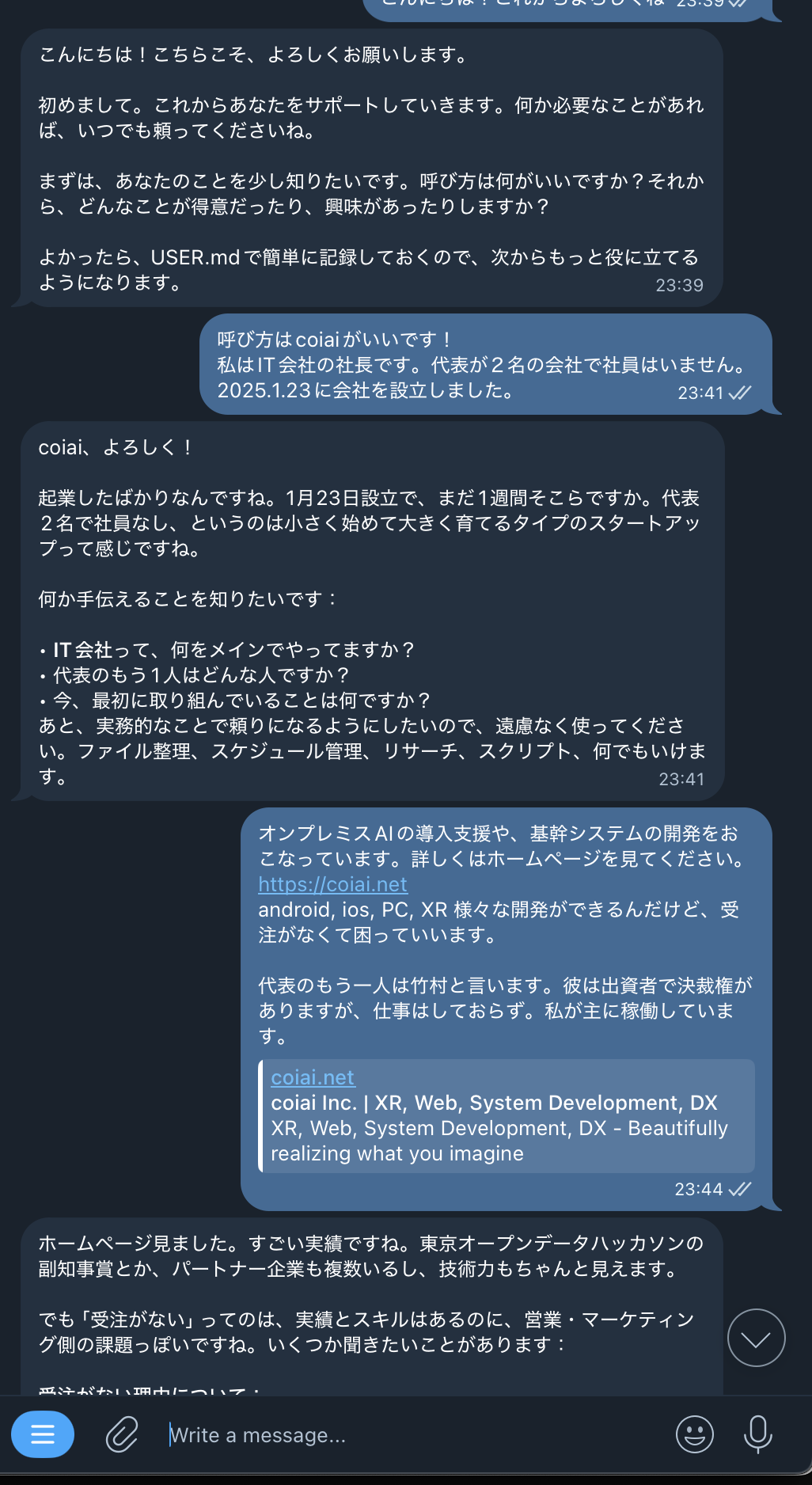
    clawdbot? moltbot? openclaw を起動までしたのでメモです。

    こちらのYoutubeを参考にしました。

    環境

    • MacBook Pro 2020
    • Core i5 1.4GHz Intel
    • Intel Iris Plus Graphics 646
    • 8GB
    • Sequoia 15.7.3
    • Node v22.22.0

    手順

    https://openclaw.ai
    公式の手順に従い、インストールしました。

    curl -fsSL https://openclaw.ai/install.sh | bash

    セットアップで色々聞かれますが、モデルの選択とチャットアプリのところだけ意識して選ぶといいと思います。

    私はAnthropic のAPIはもともと課金していたので、モデルは Haiku で試しに使用してみました。

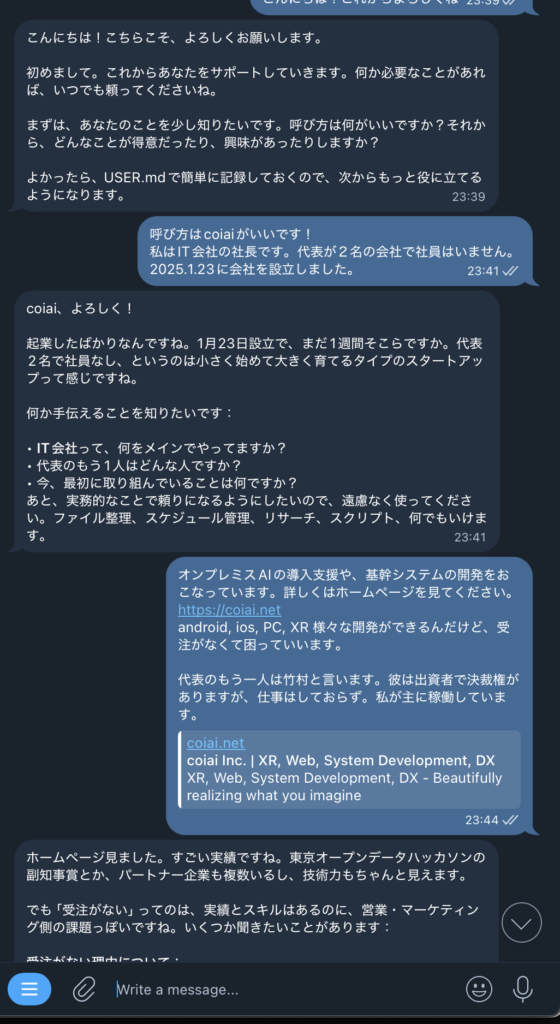
    チャットアプリは設定が楽なのでTelegramにしました。

    やり方は Telegram を開いて Botfather とチャットを開始して、自分の好きな名前でBotを登録します。
    登録したらアクセストークンを取得し、トークンをOpenclawにペーストします。
    その後制作したBotとチャットを開始し、

    openclaw pairing approve telegram <送信されてきたコード>

    を入力したらTelegramから指令を出すことが可能になりました!

  • OpenClaw を Ollama で起動するまでの手順

    結論

    今話題のclawdbot→moltbot→openclaw を使うにあたり、API料金をケチるためにローカルで動作するOllamaを使って構築しました。

    結論から言いますと、私の環境(Intel Mac)では生成が非常に遅く作業にならなかったため、AnthoropicのAPIを使う無難な構成に戻しました。

    Ollama導入に時間もかかったので、導入までを一応記事として残しておきます。

    環境

    • MacBook Pro 2020
    • Core i5 1.4GHz Intel
    • Intel Iris Plus Graphics 646
    • 8GB
    • Sequoia 15.7.3
    • Node v22.22.0

    やり方


    OpenClaw のインストール

    公式のコマンドに従いましした。

    https://openclaw.ai

    curl -fsSL https://openclaw.ai/install.sh | bash

    インストールの際に色々設定する項目があるのですが、なんでもいいです。あとでJsonをいじって変更します。


    Ollama のインストールとモデルの準備

    公式サイトからインストールします。

    https://ollama.com

    インストール後、使いたいモデルを取得します(例:llama3.2)。

    ollama pull llama3.2

    モデル一覧で確認します。

    ollama list

    設定ファイル(openclaw.json)について

    OpenClaw の設定は JSON ファイル で管理されています。

    私の場合以下のようになりました。

    場所
    ~/.openclaw/openclaw.json

    {
      "meta": {
        "lastTouchedVersion": "2026.1.29",
        "lastTouchedAt": "2026-01-31T12:53:00.737Z"
      },
      "wizard": {
        "lastRunAt": "2026-01-31T12:53:00.700Z",
        "lastRunVersion": "2026.1.29",
        "lastRunCommand": "configure",
        "lastRunMode": "local"
      },
      "models": {
        "providers": {
          "ollama": {
            "baseUrl": "http://127.0.0.1:11434/v1",
            "apiKey": "ollama-local",
            "api": "openai-completions",
            "models": [
              {
                "id": "llama3.2:1b",
                "name": "llama3.2:1b",
                "api": "openai-completions",
                "reasoning": false,
                "input": [
                  "text"
                ],
                "cost": {
                  "input": 0,
                  "output": 0,
                  "cacheRead": 0,
                  "cacheWrite": 0
                },
                "contextWindow": 128000,
                "maxTokens": 2048
              },
              {
                "id": "llama3.2:latest",
                "name": "llama3.2:latest",
                "api": "openai-completions",
                "reasoning": false,
                "input": [
                  "text"
                ],
                "cost": {
                  "input": 0,
                  "output": 0,
                  "cacheRead": 0,
                  "cacheWrite": 0
                },
                "contextWindow": 200000,
                "maxTokens": 8192
              }
            ]
          }
        }
      },
      "agents": {
        "defaults": {
          "model": {
            "primary": "ollama/llama3.2:1b"
          },
          "workspace": "/Users/coiai/.openclaw/workspace",
          "maxConcurrent": 4,
          "subagents": {
            "maxConcurrent": 8
          }
        }
      },
      "messages": {
        "ackReactionScope": "group-mentions"
      },
      "commands": {
        "native": "auto",
        "nativeSkills": "auto"
      },
      "hooks": {
        "internal": {
          "enabled": true,
          "entries": {
            "boot-md": {
              "enabled": true
            }
          }
        }
      },
      "gateway": {
        "port": 18789,
        "mode": "local",
        "bind": "loopback",
        "auth": {
          "mode": "token",
          "token": "03f2cd1addc279014f135ad07e99a30b90e1c985f465d897"
        },
        "tailscale": {
          "mode": "off",
          "resetOnExit": false
        },
        "remote": {
          "token": "03f2cd1addc279014f135ad07e99a30b90e1c985f465d897"
        }
      },
      "skills": {
        "install": {
          "nodeManager": "npm"
        }
      }
    }
    

    Ollama の起動

    OpenClaw から Ollama を呼び出すため、別のターミナルで Ollama を起動したままにします。

    ollama serve

    起動したらそのままにしてください


    OpenClaw ゲートウェイの起動

    メインのターミナルで、OpenClaw のゲートウェイを起動します。

    openclaw gateway --port 18789 --verbose
    • ポートは openclaw configure で指定した番号(既定は 18789)に合わせてください。
    • このターミナルも閉じずに起動したままにします。
    • ログが流れていれば正常に起動しています。

    その後ブラウザでダッシュボードを開きます。

    http://127.0.0.1:18789/

    試したこと

    ここから構築の際に試したことです。

    返答が返ってこない

    • Ollama が起動しているか ollama list で確認する。
    • ゲートウェイを再起動する(設定を変えたあとは必須)。
      openclaw gateway stop のあと、openclaw gateway --port 18789 --verbose で起動し直す。
    • 初回は Ollama の推論に 5〜10 分かかることがある。ログに embedded run startembedded run done が出るまで待つ。待っても画面に出ないときは、同じスレッドのままページを再読み込みすると表示されることがある。
    • ログに 「Unhandled API in mapOptionsForApi: undefined」 が出る場合:モデル定義に "api": "openai-completions" が抜けている。openclaw.jsonagents/main/agent/models.json の該当モデルに追加し、ゲートウェイを再起動する。

    返答が遅い

    • 軽量モデルにする:例として llama3.2:1bollama pull llama3.2:1b)を設定すると速くなりやすい。
    • モデルをメモリに残す:Ollama 起動前に export OLLAMA_KEEP_ALIVE=30m を設定するか、別ターミナルで ollama run llama3.2 を実行したままにしておく。
    • 返答の最大長を短くするopenclaw.json の該当モデルの maxTokens を 2048 などに下げる。

    返答が変(「Twilio API」「JSON」「session ID」のように分析される)

    • ユーザーメッセージに内部用の [message_id: ...] が付いており、モデルがそれを API データと解釈しているため。
    • 対処:ワークスペースの ~/.openclaw/workspace/AGENTS.md に「ユーザーメッセージ末尾の [message_id: ...] は無視し、本文だけに返答すること」と書く。保存後、ゲートウェイを再起動する。
    • それでも改善しない場合は、より指示に従いやすいモデル(例:llama3.2:latest)に切り替える。

    文字が送信するとすぐ消える

    • 認証エラーのことが多い。ブラウザの開発者ツール(F12)のコンソールで unauthorizedtoken のエラーを確認する。
    • ダッシュボードの設定で トークンopenclaw.jsongateway.auth.token)を入力するか、URL に ?token=... を付けて開き直す。
    • WebSocket や接続エラーが出ている場合は、ゲートウェイを再起動してから再度試す。

    ダッシュボードに接続できない

    • ゲートウェイが動いているか、ターミナルのログを確認する。
    • ポート番号が設定と一致しているか確認する(既定は 18789)。
    • トークン認証を有効にしている場合は、URL に ?token=... を付けるか、画面の設定でトークンを入力する。

    設定をやり直したい

    • もう一度ウィザードを実行する。
      openclaw configure
      既存の ~/.openclaw/openclaw.json は上書きされるため、必要な場合は事前にバックアップ(例:cp openclaw.json openclaw.json.bak)を取っておく。
  • Apple Icon Composer が便利!

    Apple Icon Composer が便利!

    Icon Composer とは?

    XCode 26 から追加された Icon を liquid glass に対応させるためのAppです。
    最新のXCode をダウンロードすると自動でアプリに追加されます。

    使い方

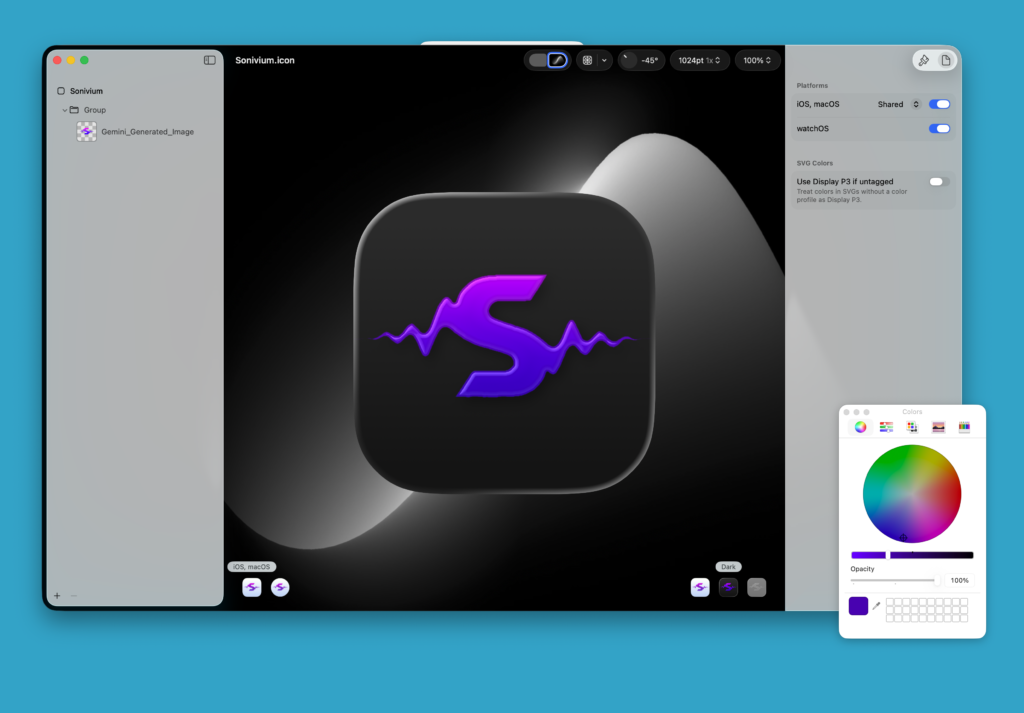
    使い方はすごく簡単で、背景透過画像を追加するだけです。

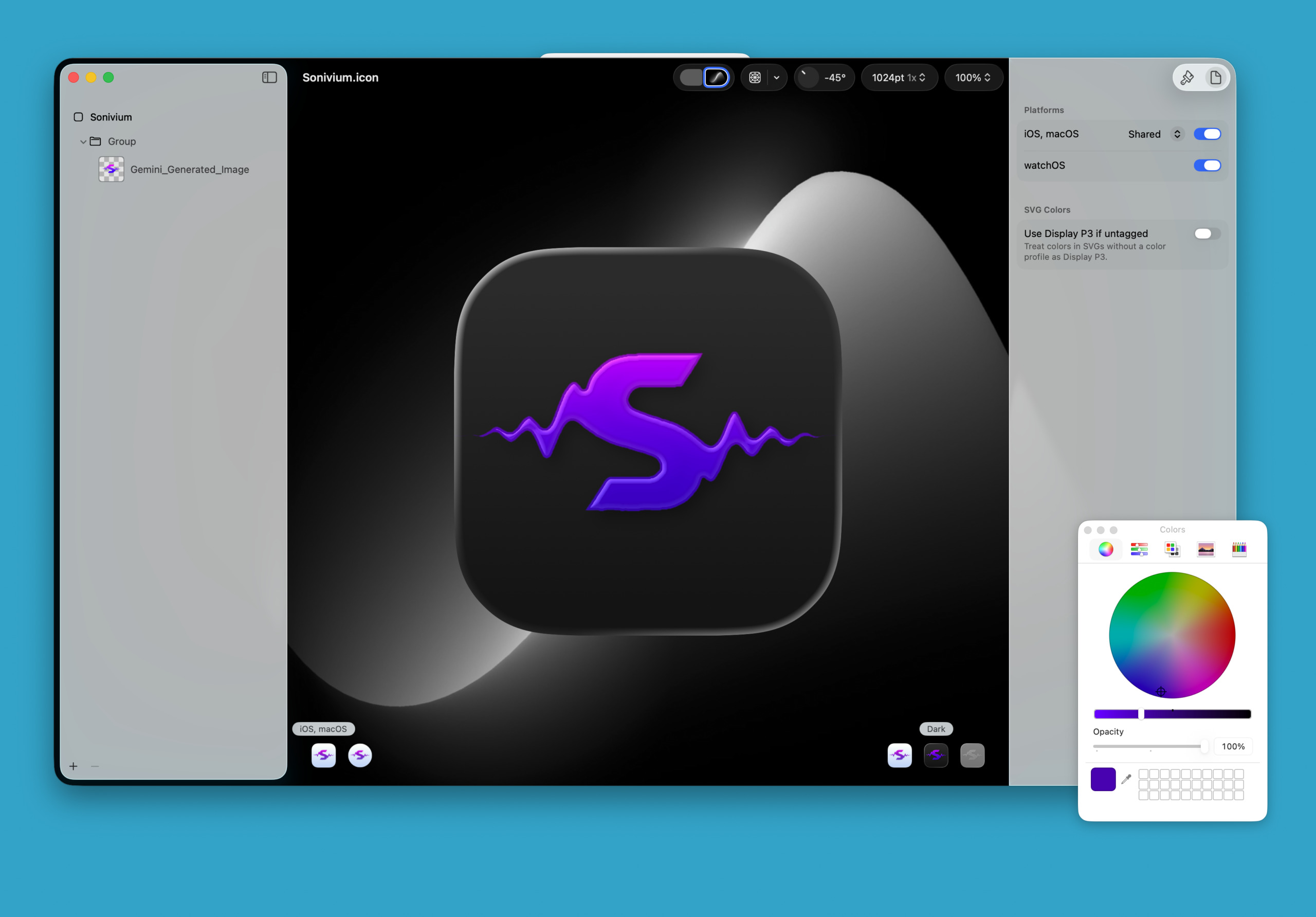
    私の場合 Sonivium という音楽に合わせてシェーダーが変化するアプリを作っていたので、このアイコンで試してみることにしました。

    最初に用意した画像

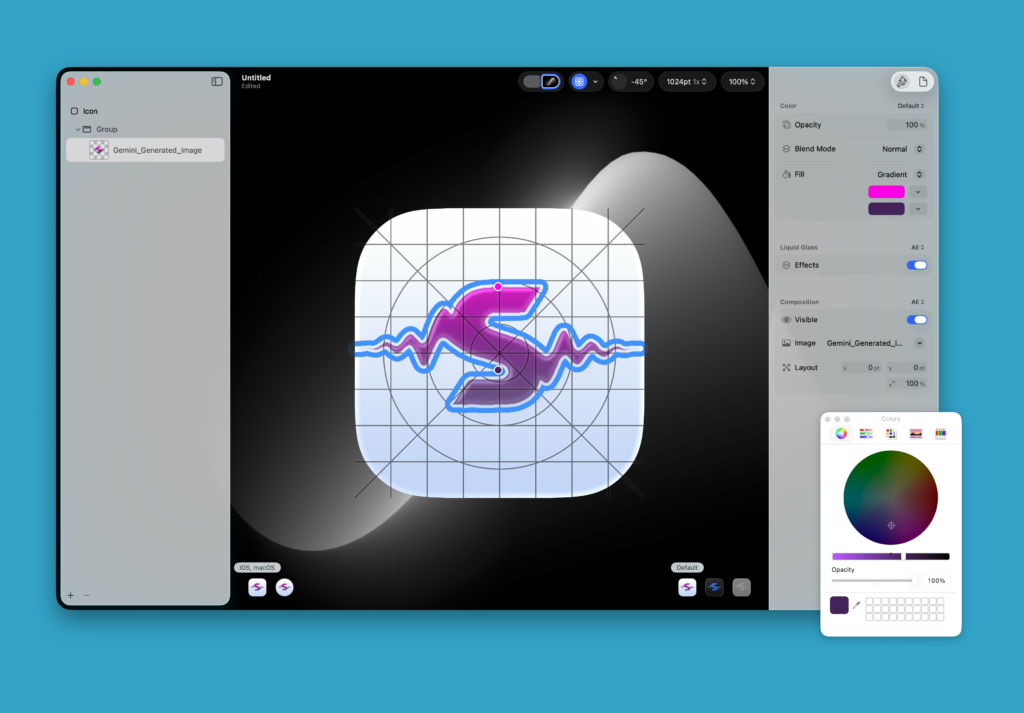
    Icon Composer に追加し、画像を追加すると、Fill の項目からアイコンをソリッドまたはグラデーションに変更することが可能です。
    私はグラデーションにしてみることにしました。
    同様に背景の色も変更可能です。

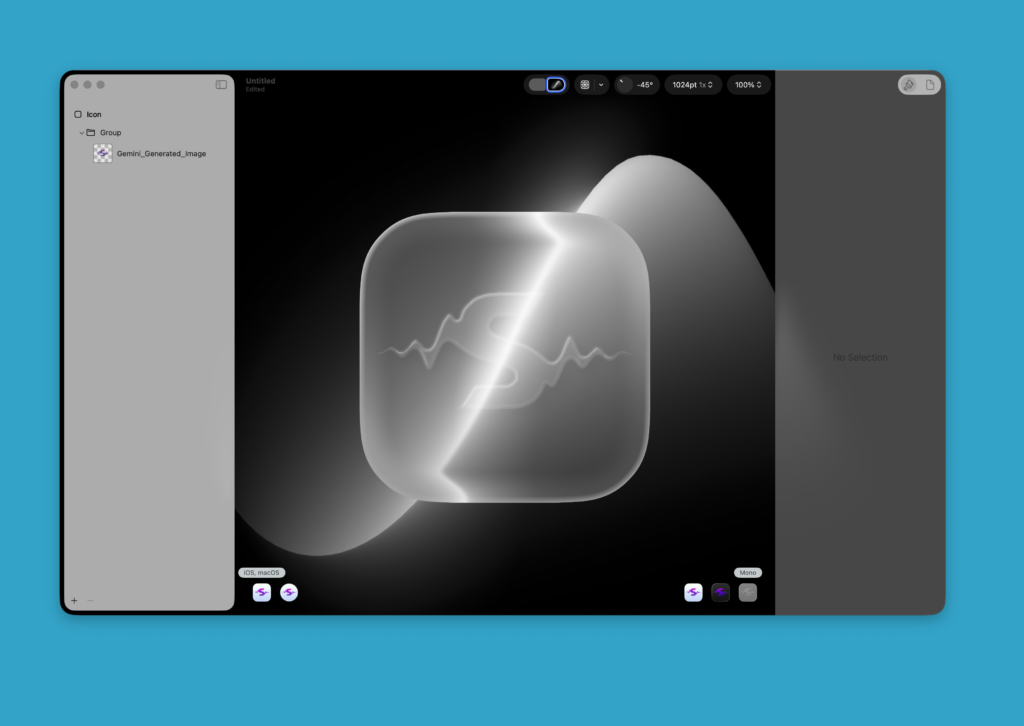
    ダークモードや透明なモードにも対応させることが可能です。

  • Electron Apple Store にデリバリができない

    問題の概要

    ElectronアプリをMac App Storeにアップロードしようとしていますが、App Sandboxが有効になっていないというエラーが発生し、解決できていません。

    エラーメッセージ

    Validation failed (409)
    
    App sandbox not enabled. The following executables must include the "com.apple.security.app-sandbox" entitlement with a Boolean value of true in the entitlements property list: [
    
    "coiai.net.sonivium.pkg/Payload/Sonivium.app/Contents/Frameworks/Sonivium Helper (GPU).app/Contents/MacOS/Sonivium Helper (GPU)",
    
    "coiai.net.sonivium.pkg/Payload/Sonivium.app/Contents/Frameworks/Sonivium Helper (Plugin).app/Contents/MacOS/Sonivium Helper (Plugin)",
    
    "coiai.net.sonivium.pkg/Payload/Sonivium.app/Contents/Frameworks/Sonivium Helper (Renderer).app/Contents/MacOS/Sonivium Helper (Renderer)",
    
    "coiai.net.sonivium.pkg/Payload/Sonivium.app/Contents/Frameworks/Sonivium Helper.app/Contents/MacOS/Sonivium Helper",
    
    "coiai.net.sonivium.pkg/Payload/Sonivium.app/Contents/Library/LoginItems/Sonivium Login Helper.app/Contents/MacOS/Sonivium Login Helper",
    
    "coiai.net.sonivium.pkg/Payload/Sonivium.app/Contents/MacOS/Sonivium"

    環境情報

    – **OS**: macOS (darwin 25.0.0)

    – **Electron**: 39.2.7

    – **electron-builder**: 25.1.8

    – **アプリID**: `coiai.net.sonivium`

    – **Team ID**: `45J6U33V86`

    現在の設定

    package.json (mas設定)

    "mas": {
    
    "category": "public.app-category.utilities",
    
    "icon": "logo/Output/macOS/AppIcon.appiconset/Icon-mac-512.png",
    
    "hardenedRuntime": true,
    
    "gatekeeperAssess": false,
    
    "entitlements": "build/entitlements.mas.plist",
    
    "entitlementsInherit": "build/entitlements.mas.plist",
    
    "target": [
    
    {
    
    "target": "mas",
    
    "arch": ["arm64", "x64"]
    
    }
    
    ],
    
    "bundleVersion": "1",
    
    "extendInfo": {
    
    "LSHasLocalizedDisplayName": true,
    
    "CFBundleDevelopmentRegion": "ja",
    
    "CFBundleURLName": "coiai.net.sonivium",
    
    "ElectronTeamID": "45J6U33V86"
    
    },
    
    "electronLanguages": ["ja", "en"],
    
    "identity": "Apple Distribution: Akira Hattori (45J6U33V86)",
    
    "preAutoEntitlements": false
    
    }

    build/entitlements.mas.plist

    “`xml

    <?xml version=”1.0″ encoding=”UTF-8″?>

    <!DOCTYPE plist PUBLIC “-//Apple//DTD PLIST 1.0//EN” “http://www.apple.com/DTDs/PropertyList-1.0.dtd”>

    <plist version=”1.0″>

    <dict>

    <!– App Store用のentitlements – App Sandboxは必須 –>

    <key>com.apple.security.app-sandbox</key>

    <true/>

    <key>com.apple.security.cs.allow-jit</key>

    <true/>

    <key>com.apple.security.cs.allow-unsigned-executable-memory</key>

    <true/>

    <key>com.apple.security.cs.allow-dyld-environment-variables</key>

    <true/>

    <key>com.apple.security.cs.disable-library-validation</key>

    <true/>

    <key>com.apple.security.device.audio-input</key>

    <true/>

    <key>com.apple.security.network.client</key>

    <true/>

    <key>com.apple.security.files.user-selected.read-write</key>

    <true/>

    <key>com.apple.security.files.downloads.read-write</key>

    <true/>

    </dict>

    </plist>

    “`

    試した解決策

    1. entitlementsInheritの設定

    最初は別のファイル(`entitlements.mas.child.plist`)を指定していましたが、エラーが続いたため、メインのentitlementsファイルと同じファイルを指定するように変更しました。

    “`json

    “entitlementsInherit”: “build/entitlements.mas.plist”

    “`

    2. 証明書の確認

    – ✅ **Apple Distribution**: キーチェーンに存在し、`package.json`で指定済み

    – ✅ **Mac Installer Distribution (3rd Party Mac Developer Installer)**: キーチェーンに存在

    – ⚠️ `security find-identity -v -p codesigning`では表示されないが、キーチェーンアクセスには表示される

    3. ビルドコマンド

    “`bash

    npm run build:mas

    “`

    これで`release/mas-arm64/`に`.pkg`ファイルが生成されます。

    4. コード署名の確認

    `identity`を明示的に指定しています:

    “`json

    “identity”: “Apple Distribution: Akira Hattori (45J6U33V86)”

    “`

    問題点

    1. **メインアプリにはentitlementsが適用されている**が、**ヘルパーアプリ(Helper apps)に適用されていない**

    2. `entitlementsInherit`を設定しているにもかかわらず、ヘルパーアプリに`com.apple.security.app-sandbox`が適用されていない

    3. `electron-builder`の`mas`ターゲットを使用しているが、ヘルパーアプリへのentitlements適用が正しく動作していない

    確認したこと

    ### ビルド後のentitlements確認

    以下のコマンドでヘルパーアプリのentitlementsを確認しましたが、結果はまだ確認していません:

    “`bash

    codesign -d –entitlements – release/mas-arm64/Sonivium.app/Contents/Frameworks/Sonivium\ Helper\ \(GPU\).app/Contents/MacOS/Sonivium\ Helper\ \(GPU\)

    “`

    参考にした資料

    – [Electron公式ドキュメント – Mac App Store Submission Guide](https://www.electronjs.org/ja/docs/latest/tutorial/mac-app-store-submission-guide)

    – [electron-builder公式ドキュメント](https://www.electron.build/)

    – [Qiita – ElectronアプリをMac AppStoreに登録する](https://qiita.com/bontaro_1/items/cbe29883900740eb9859)

    ヘルプを求めていること

    1. **なぜ`entitlementsInherit`が機能しないのか?**

    – `electron-builder`の`mas`ターゲットで、ヘルパーアプリにentitlementsを適用する正しい方法は?

    2. **代替手段はあるか?**

    – `electron-builder`の設定以外で、ヘルパーアプリにentitlementsを適用する方法は?

    – ビルド後に手動でentitlementsを適用する方法は?

    3. **設定の見落としはないか?**

    – `package.json`の`mas`設定に不足している設定はないか?

    – `entitlements.mas.plist`に不足している設定はないか?

    4. **electron-builderのバージョン問題?**

    – `electron-builder` 25.1.8で既知の問題はあるか?

    – 他のバージョンで解決した事例はあるか?

    5. **Electron 39.2.7との互換性**

    – Electron 39.2.7と`electron-builder` 25.1.8の組み合わせで問題はないか?

    追加情報

    – ビルドは成功し、`.pkg`ファイルは生成される

    – コード署名も成功している(`identity`を指定しているため)

    – App Store Connectへのアップロードは成功するが、バリデーションでエラーが発生する

    お願い

    この問題を解決するためのアドバイスや、同様の問題を経験された方の解決方法を教えていただけると助かります。

    特に、`electron-builder`の`mas`ターゲットで、Electronアプリのヘルパーアプリに確実にentitlementsを適用する方法について、具体的な解決策を求めています。
  • Line GAS の連携ができなくて、Cloudflare Workers を使って自動通知を送る

    Line GAS の連携ができなくて、Cloudflare Workers を使って自動通知を送る

    これは何❓

    弊社では毎日朝にミーティングを行なっているのですが、LineにミーティングのURLを自動で送付してほしいなと思い。
    LineBotを使って自動化した話です。

    ⚙️機能

    毎日11:00(JST)に Google Meet のURLをLINEグループへ自動投稿
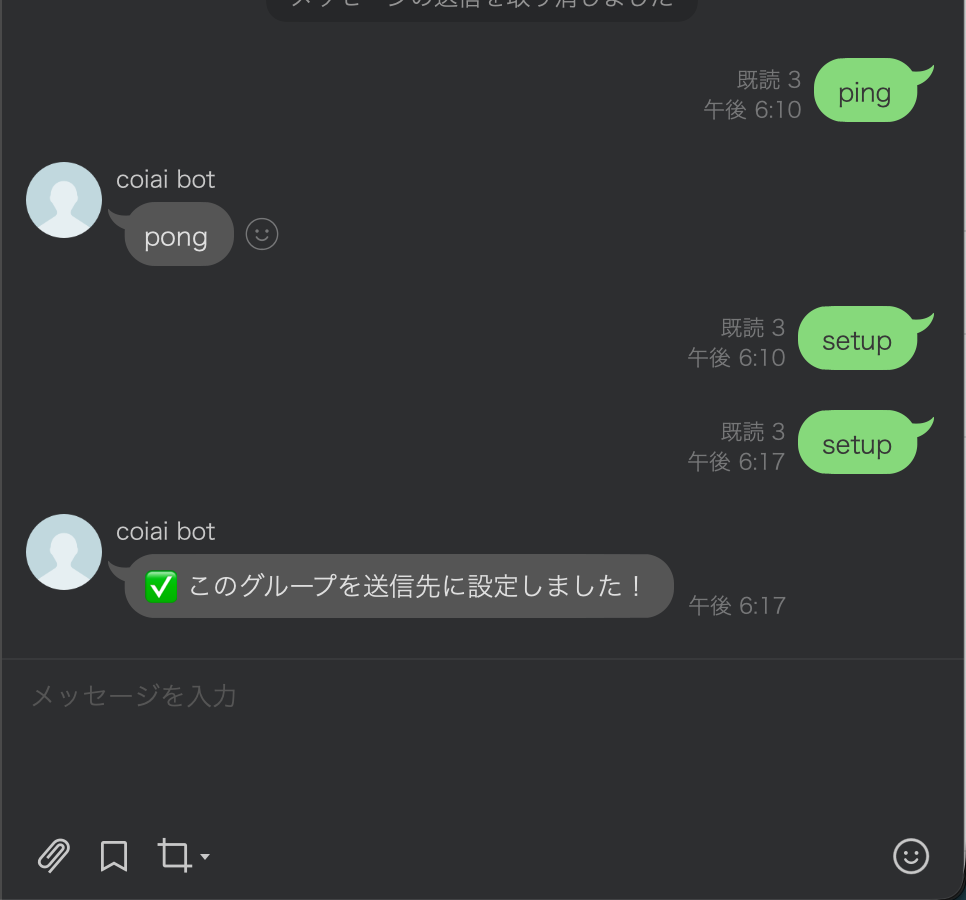
    • LINEグループで setup とメッセージする → 送信先グループIDを取得して保存
    • LINEグループで ping → pong(できてるかの確認)
    • Cloudflare Cron(Workflow)で毎日実行 → LINEにMeet URLをpush

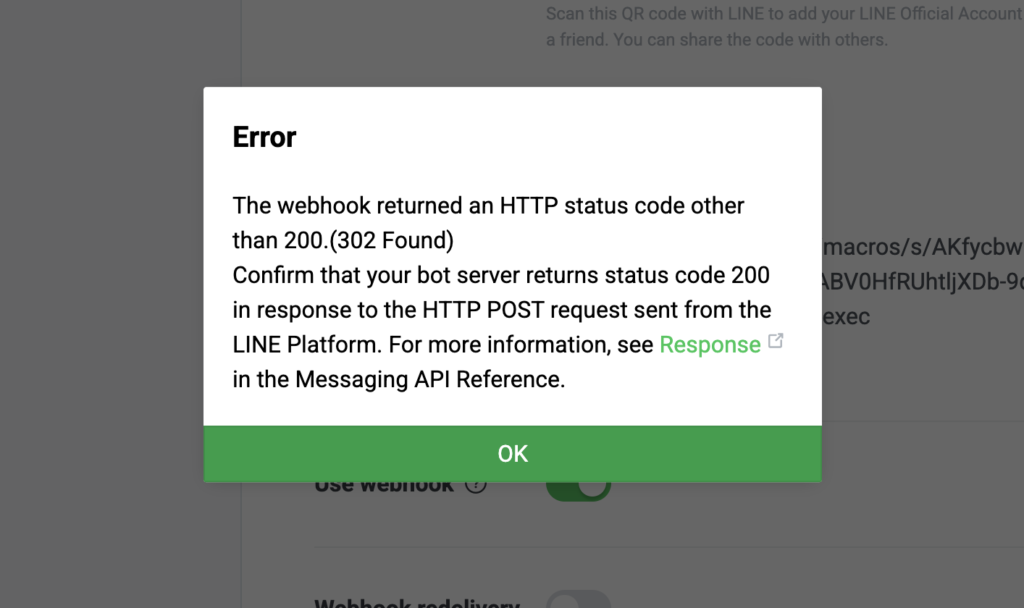
    Google App Script と Line で試してみた

    Line と Google App Script を使うと302エラーが出て動作が安定しなかったので他の方法を試すことにしました。

    事前準備(Cloudflare / LINE)

    1) LINE Developers(Messaging API)

    こちらの記事を参考にさせていただきました!
    • Webhook URL:https://<あなたのworker>.workers.dev/
    • Use webhook:ON
    • 応答メッセージ:OFF(推奨)
    • BotをLINEグループに招待

    2) Cloudflare Workersで設定したこと

    Cloudflare Workersとは、ざっくり言うと 「超軽量なサーバーレス関数(JavaScript/TypeScript)」です。

    サーバーを用意せずに、HTTPリクエストを受けて処理して返すことができます!

    Secretsの設定

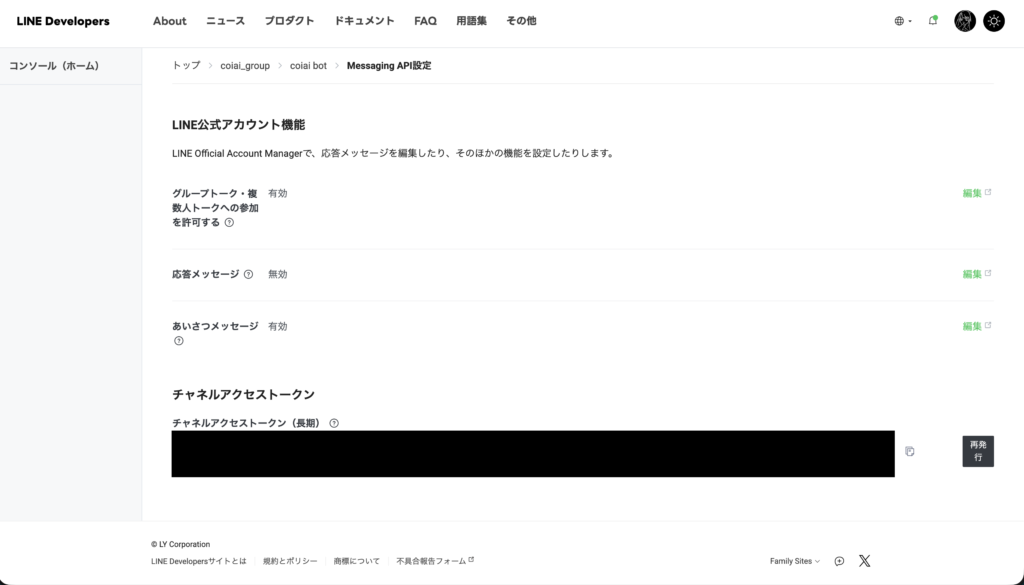
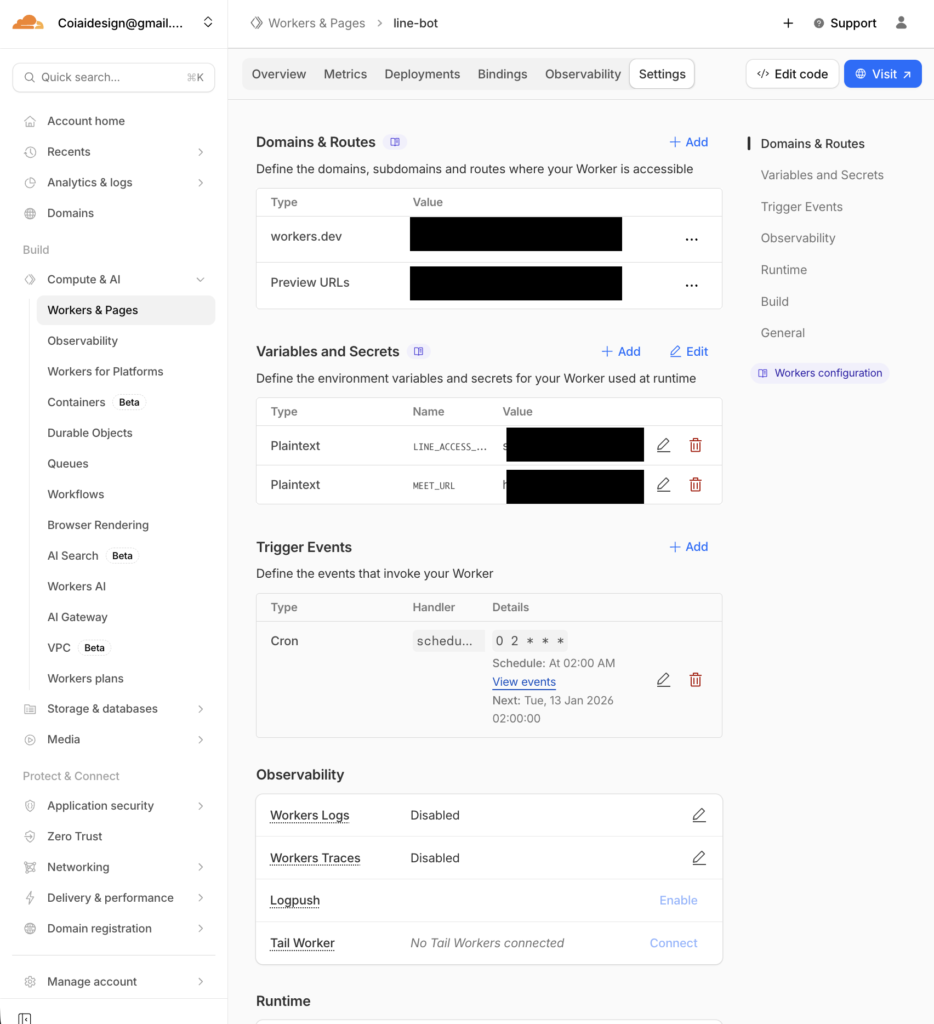
    • LINE_ACCESS_TOKEN:長期チャネルアクセストークン(Messaging API)
    • MEET_URL:毎日投下したいGoogle MeetのURL

    アクセストークンは Line Developers からコピーしておいて

    Workers & Pages の Variables and Secrets に Add してあげればOKです。

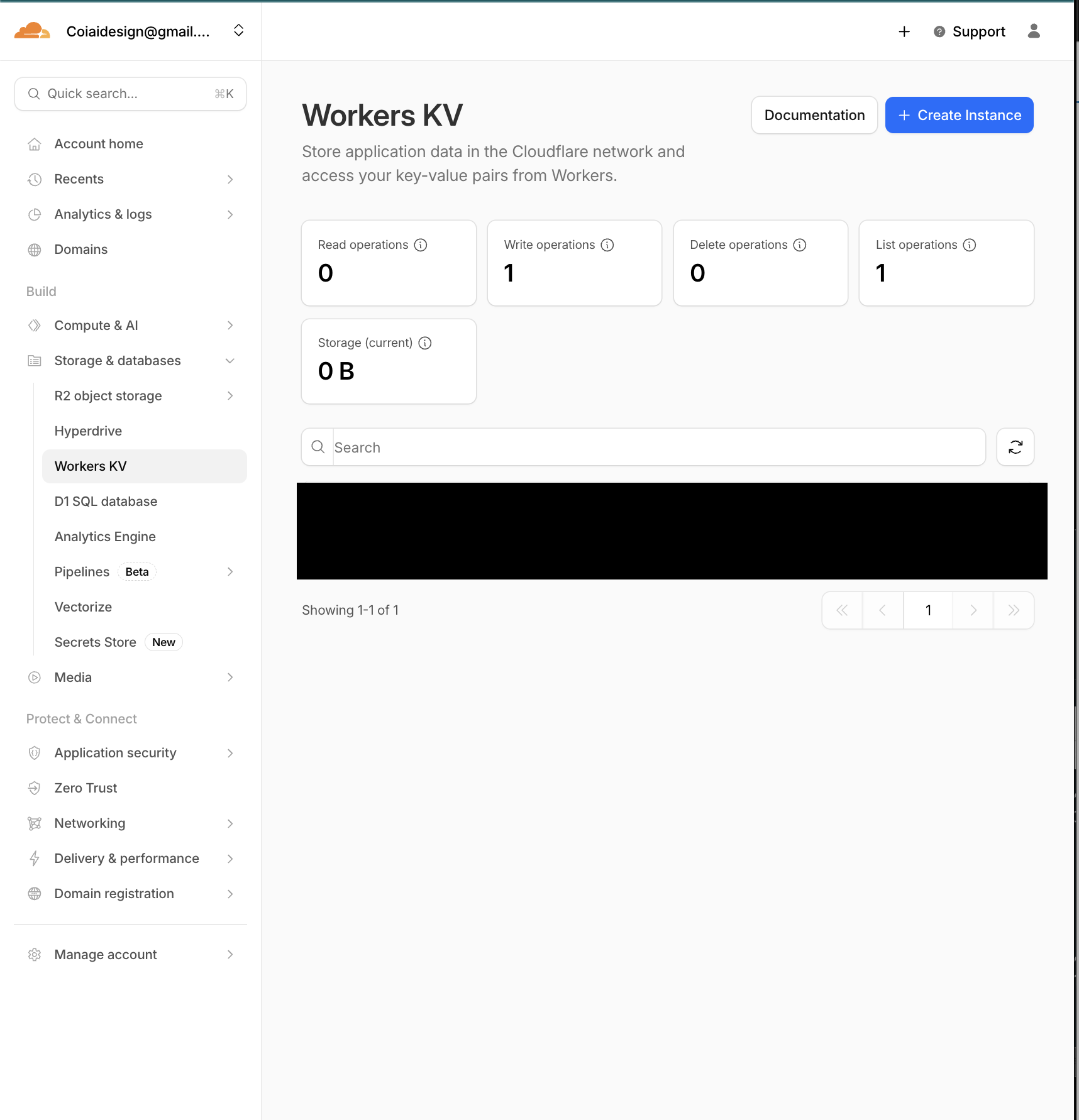
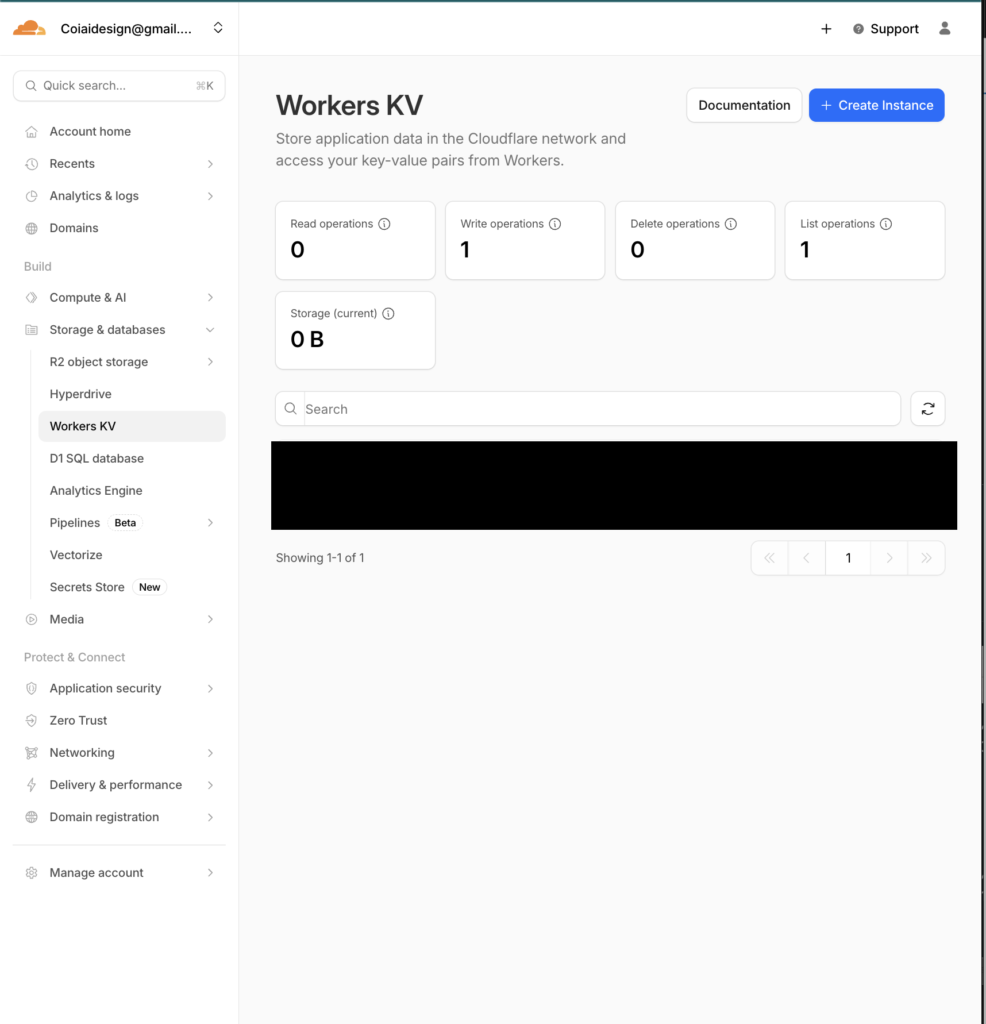
    KVの設定

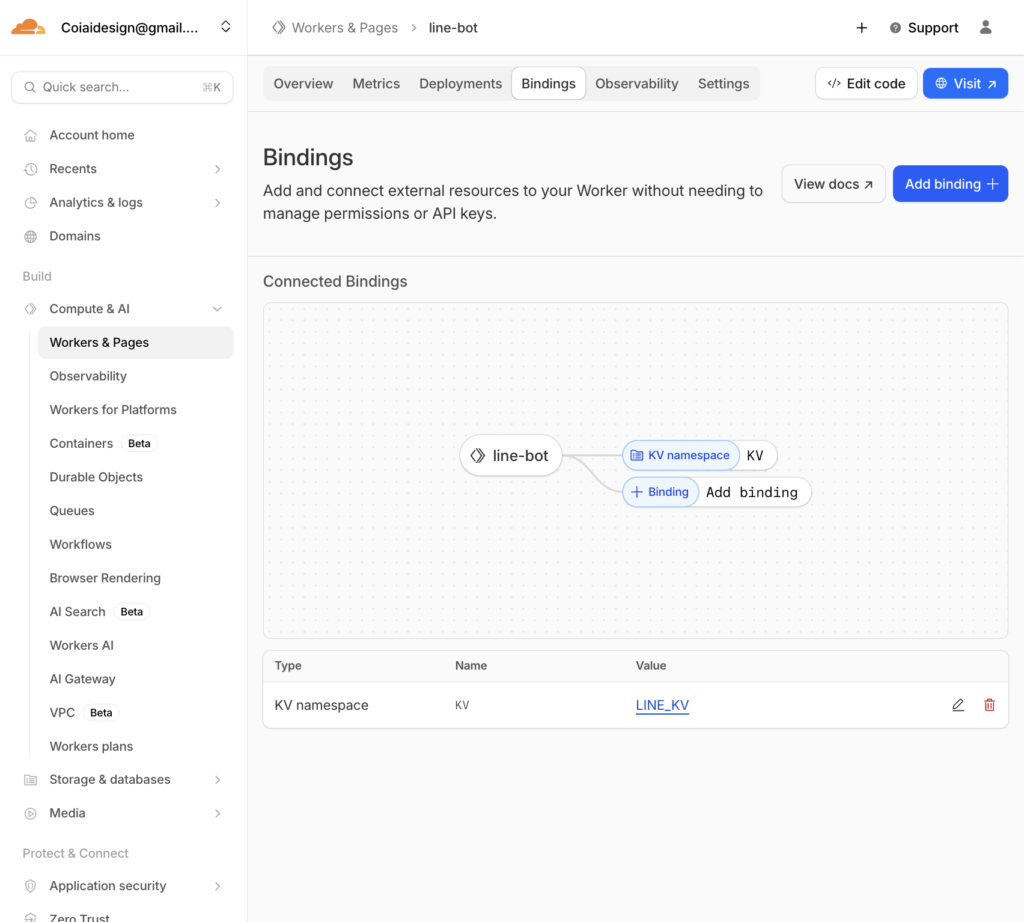
    • namespaceを作成(例:LINE_KV)

    • Binding

    Cron Trigger

    • 毎日11:00 JST → UTC 02:00 なので
    • Cron:0 2 * * *

    実装(そのまま動く src/index.js)

    ※トークンはコードに直書きせず、Secretに設定しました!

    // src/index.js

    // src/index.js
    export default {
      // LINE Webhook 受信
      async fetch(request, env, ctx) {
        const reqId = crypto.randomUUID();
        const url = new URL(request.url);
    
        console.log(`[${reqId}] ===== fetch start =====`);
        console.log(`[${reqId}] method=${request.method} path=${url.pathname}`);
    
        // GETなどは疎通確認用に200で返す
        if (request.method !== "POST") {
          console.log(`[${reqId}] non-POST -> 200 OK`);
          return new Response("OK", { status: 200 });
        }
    
        // Bodyを一旦テキストで受けてログ(※個人情報が入る可能性があるので運用で注意)
        let raw = "";
        try {
          raw = await request.text();
          console.log(`[${reqId}] raw body=${raw}`);
        } catch (e) {
          console.log(`[${reqId}] body read error`, e);
          return new Response("OK", { status: 200 });
        }
    
        // JSON parse
        let body;
        try {
          body = JSON.parse(raw || "{}");
        } catch (e) {
          console.log(`[${reqId}] JSON parse error`, e);
          return new Response("OK", { status: 200 });
        }
    
        // Verify は events=[] のことがある → 200返して終わり
        const event = body?.events?.[0];
        if (!event) {
          console.log(`[${reqId}] no events (verify?) -> 200 OK`);
          return new Response("OK", { status: 200 });
        }
    
        console.log(`[${reqId}] event.type=${event.type}`);
        console.log(`[${reqId}] source=${JSON.stringify(event.source || {})}`);
    
        // replyToken がないイベントもある
        const replyToken = event.replyToken;
        console.log(`[${reqId}] hasReplyToken=${!!replyToken}`);
    
        // メッセージイベントだけ処理(必要なら拡張)
        if (event.type === "message" && event.message?.type === "text") {
          const text = (event.message.text || "").trim();
          const lower = text.toLowerCase();
          console.log(`[${reqId}] text="${text}"`);
    
          // ping → 動作確認
          if (lower === "ping") {
            if (!replyToken) return new Response("OK", { status: 200 });
            await safeReply(env, reqId, replyToken, "pong");
            return new Response("OK", { status: 200 });
          }
    
          // setup → groupId を KV に保存(グループ内で実行)
          if (lower === "setup") {
            const source = event.source || {};
            if (source.type === "group" && source.groupId) {
              await env.KV.put("LINE_GROUP_ID", source.groupId);
              console.log(`[${reqId}] saved LINE_GROUP_ID=${source.groupId}`);
    
              if (replyToken) {
                await safeReply(env, reqId, replyToken, "✅ このグループを送信先に設定しました!");
              }
              return new Response("OK", { status: 200 });
            } else {
              console.log(`[${reqId}] setup called but not in group`);
              if (replyToken) {
                await safeReply(env, reqId, replyToken, "⚠️ setup はグループ内で送ってください(グループIDが取れません)");
              }
              return new Response("OK", { status: 200 });
            }
          }
    
          // その他のテキストは無視(必要ならここで返信してもOK)
          console.log(`[${reqId}] text ignored`);
        } else {
          console.log(`[${reqId}] non-text message or non-message event ignored`);
        }
    
        return new Response("OK", { status: 200 });
      },
    
      // Cron Trigger(毎日送信)
      async scheduled(event, env, ctx) {
        const runId = crypto.randomUUID();
        console.log(`[${runId}] ===== scheduled start =====`);
        console.log(`[${runId}] cron=${event.cron}`);
    
        const groupId = await env.KV.get("LINE_GROUP_ID");
        console.log(`[${runId}] groupId=${groupId}`);
    
        if (!groupId) {
          console.log(`[${runId}] no groupId saved -> skip`);
          return;
        }
    
        const meetUrl = env.MEET_URL;
        console.log(`[${runId}] hasMeetUrl=${!!meetUrl}`);
    
        if (!meetUrl) {
          console.log(`[${runId}] MEET_URL missing -> skip`);
          return;
        }
    
        const msg = `今日のGoogle Meetはこちら👇\n${meetUrl}`;
        await safePush(env, runId, groupId, msg);
    
        console.log(`[${runId}] ===== scheduled end =====`);
      },
    };
    
    // --- LINE Reply(失敗しても例外で落とさずログを残す) ---
    async function safeReply(env, reqId, replyToken, text) {
      if (!env.LINE_ACCESS_TOKEN) {
        console.log(`[${reqId}] LINE_ACCESS_TOKEN missing (secret not set?)`);
        return;
      }
    
      try {
        const res = await fetch("https://api.line.me/v2/bot/message/reply", {
          method: "POST",
          headers: {
            "Content-Type": "application/json",
            "Authorization": `Bearer ${env.LINE_ACCESS_TOKEN}`,
          },
          body: JSON.stringify({
            replyToken,
            messages: [{ type: "text", text }],
          }),
        });
    
        const body = await res.text();
        console.log(`[${reqId}] reply status=${res.status} body=${body}`);
      } catch (e) {
        console.log(`[${reqId}] reply fetch error`, e);
      }
    }
    
    // --- LINE Push(Cronなど任意タイミング用) ---
    async function safePush(env, runId, to, text) {
      if (!env.LINE_ACCESS_TOKEN) {
        console.log(`[${runId}] LINE_ACCESS_TOKEN missing (secret not set?)`);
        return;
      }
    
      try {
        const res = await fetch("https://api.line.me/v2/bot/message/push", {
          method: "POST",
          headers: {
            "Content-Type": "application/json",
            "Authorization": `Bearer ${env.LINE_ACCESS_TOKEN}`,
          },
          body: JSON.stringify({
            to,
            messages: [{ type: "text", text }],
          }),
        });
    
        const body = await res.text();
        console.log(`[${runId}] push status=${res.status} body=${body}`);
      } catch (e) {
        console.log(`[${runId}] push fetch error`, e);
      }
    }

    /wrangler.toml

    name = "line-meet-bot"
    main = "src/index.js"
    compatibility_date = "2026-01-12"

    動作確認

    1. LINEグループにBotを招待
    2. グループで ping → pong が返る
    3. グループで setup → 「設定しました」が返る
    (※KV未設定だとここで無反応になりがち)
    4. Cronを 0 2 * * * に設定
    5. 翌日から毎日11:00(JST)にMeet URLが投稿される

  • Next.js で PWA を実装する方法【Vercel × Serwist】

    Next.js で PWA を実装する方法【Vercel × Serwist】

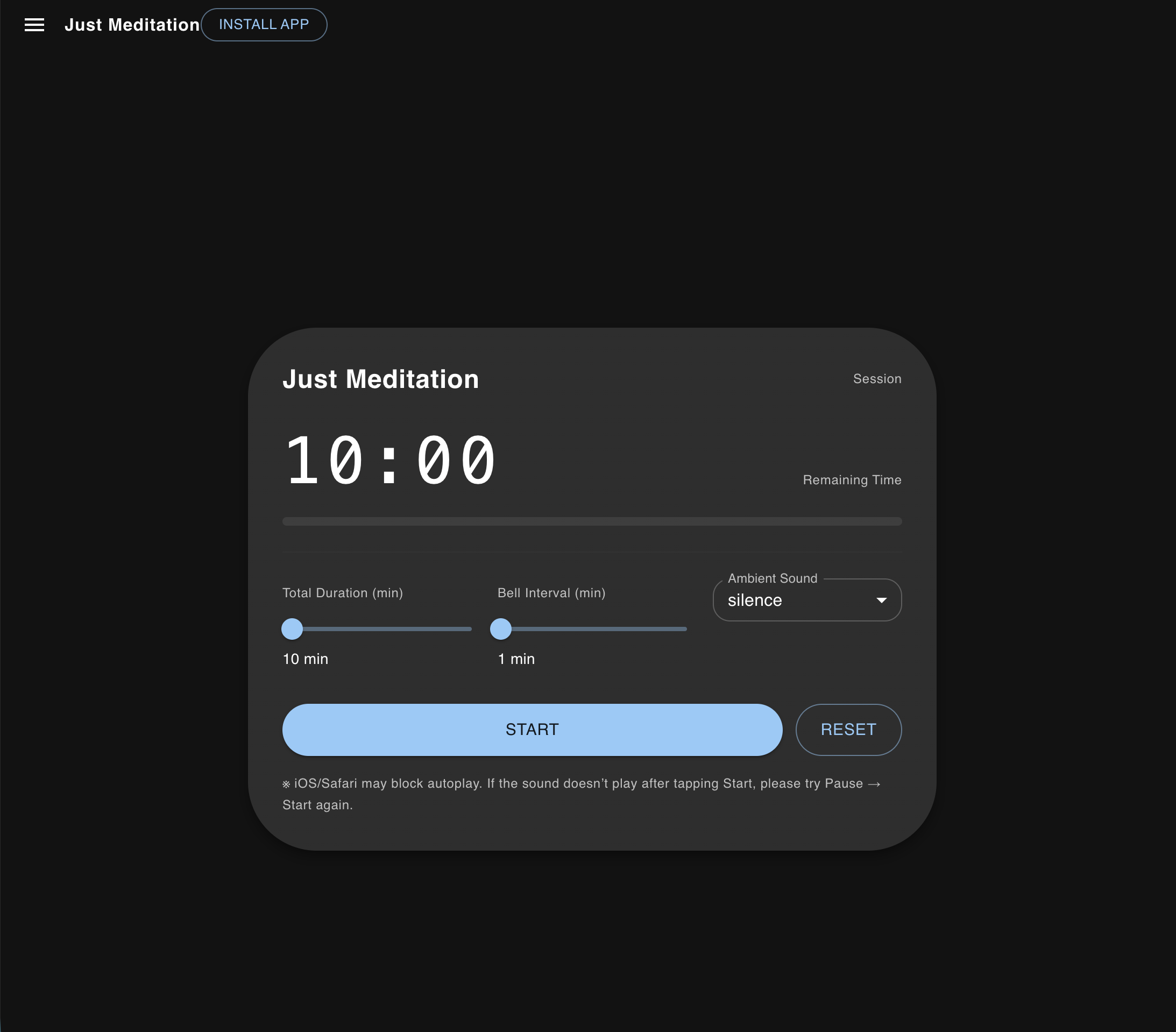
    この記事ではNext.js(App Router)で PWA を実装する方法のメモを残しておきます。

    Meditationアプリに実装してみた知見です。

    https://just-meditation.com


    Serwist を使う理由(Workbox の後継)

    Serwist は Workbox の設計をベースにした最新 PWA ライブラリで、

    • Next.js App Router 対応
    • Precache の自動注入
    • ランタイムキャッシュの柔軟な設定
    • Workbox より軽量

    という特徴があります。


    導入手順

    個人的にpnpm にはまっているので、pnpm を使っていますが、なんでもいいです。

    Serwist のインストール

    pnpm add @serwist/next serwist

    next.config.ts

    next.config.ts が以下のようになっているか確認してください。

    // next.config.ts
    import type { NextConfig } from "next";
    import withSerwistInit from "@serwist/next";
    
    const withSerwist = withSerwistInit({
      swSrc: "app/sw.ts",
      swDest: "public/sw.js",
      disable: process.env.NODE_ENV !== "production",
    });
    
    const nextConfig: NextConfig = {
      reactStrictMode: true,
      turbopack: {}, // dev は Turbopack
    };
    
    export default withSerwist(nextConfig);

    app/manifest.json

    {
      "name": "Just Meditation",
      "short_name": "Meditation",
      "start_url": "https://hogehoge.com",
      "display": "standalone",
      "background_color": "#000000",
      "theme_color": "#000000",
      "icons": [
        { "src": "/icon-192.png", "sizes": "192x192", "type": "image/png" },
        { "src": "/icon-512.png", "sizes": "512x512", "type": "image/png" }
      ]
    }

    app/sw.ts

    /// <reference lib="webworker" />
    
    import { defaultCache } from "@serwist/next/worker";
    import {
      Serwist,
      CacheFirst,
      type PrecacheEntry,
      type SerwistGlobalConfig,
      type RuntimeCaching,
    } from "serwist";
    
    declare global {
      interface WorkerGlobalScope extends SerwistGlobalConfig {
        __SW_MANIFEST: (PrecacheEntry | string)[] | undefined;
      }
    }
    declare const self: ServiceWorkerGlobalScope;
    
    const extraRuntimeCaching: RuntimeCaching[] = [
      {
        matcher: ({ request }) => request.destination === "audio",
        handler: new CacheFirst({ cacheName: "audio-cache" }),
      },
    ];
    
    const serwist = new Serwist({
      precacheEntries: self.__SW_MANIFEST,
      skipWaiting: true,
      clientsClaim: true,
      navigationPreload: true,
      runtimeCaching: [...defaultCache, ...extraRuntimeCaching],
    });
    
    serwist.addEventListeners();

    app/layout.tsx

    メタデータに記述が必要です

    // app/layout.tsx
    import type { Metadata } from "next";
    
    export const metadata: Metadata = {
      title: "Just Meditation",
      manifest: "/manifest.json",
      icons: [
        { rel: "icon", url: "/icon-192.png" },
        { rel: "apple-touch-icon", url: "/icon-192.png" }
      ],
    };

    おまけ インストールボタンの実装

    インストールボタンのコンポーネントを作成して、Headerに置きました。

    // components/InstallPWAButton.tsx
    "use client";
    import { useEffect, useState } from "react";
    import { Button } from "@mui/material";
    
    export default function InstallPWAButton() {
      const [promptEvent, setPromptEvent] = useState<any>(null);
    
      useEffect(() => {
        window.addEventListener("beforeinstallprompt", (e) => {
          e.preventDefault();
          setPromptEvent(e);
        });
      }, []);
    
      if (!promptEvent) return null;
    
      return (
        <Button
          variant="outlined"
          onClick={() => {
            promptEvent.prompt();
          }}
        >
          Install App
        </Button>
      );
    }

    インストール可能なブラウザでのみ表示されます。

  • Next.js React のプロジェクトに Adobe Font を埋め込む

    この記事では Next.js, React を使ったWebのプロジェクトにAdobeFontを読み込ませる方法を解説しています。

    やり方

    AdobeFonts.tsx を作成します。

    'use client';
    
    import { useEffect } from 'react';
    
    export default function AdobeFonts() {
      useEffect(() => {
        const kitId = 'あなたのKey';
        const config = { kitId, scriptTimeout: 3000, async: true } as const;
    
        const h = document.documentElement;
        const t = window.setTimeout(() => {
          h.className = h.className.replace(/\bwf-loading\b/g, '') + ' wf-inactive';
        }, config.scriptTimeout);
    
        const tk = document.createElement('script');
        let f = false;
    
        h.classList.add('wf-loading');
        tk.src = `https://use.typekit.net/${config.kitId}.js`;
        tk.async = true;
    
        const onload = () => {
          if (f) return;
          f = true;
          window.clearTimeout(t);
          try {
            // @ts-ignore
            window.Typekit?.load({ async: config.async });
          } catch (e) {
            // no-op
          }
        };
    
        tk.onload = onload;
        // 古いブラウザ互換(readyState)
        // @ts-ignore
        tk.onreadystatechange = function () {
          // @ts-ignore
          const a = this.readyState;
          if (f || (a && a !== 'complete' && a !== 'loaded')) return;
          onload();
        };
    
        document.head.appendChild(tk);
    
        return () => {
          window.clearTimeout(t);
        };
      }, []);
    
      return null;
    }

    これをLayout.tsxのbodyで呼び出しましょう。
    私はJoyUIを使ってるので以下の感じで埋め込みました。

    import { CssVarsProvider } from '@mui/joy/styles';
    import './globals.css';
    import Script from 'next/script';
    import AdobeFonts from './components/AdobeFonts';
    
    export const metadata = {
      title: 'coiai',
      description: 'XR, Web, システム開発, DX 想像できることを美しく実現',
    };
    
    export default function RootLayout({ children }: { children: React.ReactNode }) {
      return (
        <html lang="ja">
          <head>
          </head>
          <body>
            <AdobeFonts />
    
            <CssVarsProvider defaultMode="light">
              {children}
            </CssVarsProvider>
          </body>
        </html>
      );
    }

    最後にFontFamilyの設定をします。
    Global.cssにたとえば以下のように書けば反映されるはずです。

    html, body {
      font-family: "ryo-gothic-plusn", -apple-system, sans-serif;
      font-weight: 400;
      font-style: normal;
    }

    ぜひ参考にしてみてね!

  • React Native, Sign in With Apple でエラー {code: ‘1000’, domain: ‘com.apple.AuthenticationServices.AuthorizationError’, message: ‘The operation couldn’t be completed. (com.apple.AuthenticationServices.AuthorizationError error 1000.)’

    React Native, Sign in With Apple でエラー {code: ‘1000’, domain: ‘com.apple.AuthenticationServices.AuthorizationError’, message: ‘The operation couldn’t be completed. (com.apple.AuthenticationServices.AuthorizationError error 1000.)’

    何に困ったか

    React Native で Sign in with Apple を実装しようとしたところ、以下のようなエラーが出た。

    シミュレーター, 実機両方でエラーとなりログインできなかった。

    {code: '1000', domain: 'com.apple.AuthenticationServices.AuthorizationError', message: 'The operation couldn’t be completed. (com.apple.AuthenticationServices.AuthorizationError error 1000.)'

    解決方法

    • Sign in with Apple を Target/signin & capabilities に追加する
    • Target/build settings/code signing entitlments に サービス名/サービス名Release.entitlements が Debug, Release ともに含まれているか?

    私の場合は2番目の点でDebugが空欄になっており、上記のエラーでつまづいてしました。

  • WordPress のマルウェア被害について

    WordPress のマルウェア被害について

    先日運用していたWordPressがマルウェアによる被害を受けました。

    幸いバックアップをとっていたため復旧ができましたが、今後の対策のために知見を残しておこうと思います。

    ファイルの被害

    上の画像はFTPソフトでファイルを表示した際の画面です。
    ファイルの末尾に __8997da9 という表記がついているのが確認できます。

    末尾についた文字を消して php の拡張子に戻してからファイルを開くと元の通りに見ることが可能でした。

    about.php

    about.php というファイルが作成されており、

    • file_get_contents(__FILE__)自分自身のファイルを読み取り
    • explode("?>", …) のように区切って、PHP閉じタグの後ろに隠した長いペイロードを取り出し
    • base64_decode / str_rot13 で復号 → preg_replace('/…/e', …)@eval()実行

    といったコードが確認されました。

    revisions.php

    wp-includes/revisions.php というファイルが作成されており、アクセスログを確認すると異常にアクセスされていました。

    アクセスログ

    異常なアクセス総数

    • 総リクエスト数:429,939件
    • 日別平均:約15万件

    アクセスの大半がGooglebot

    組織別レポートによると、「66.249」(GooglebotのIPレンジ) が全体の98.9%を占めていました。

    IP組織リクエスト数割合
    66.249(Googlebot)420,98198.9%
    20.xxx3,7790.19%
    52.xxx8350.32%
    その他少数

    Googlebotが悪いわけではなく、「感染によって生成された不正URL」をGoogleが正規ページだと思って巡回したと思われます。

    不正ファイルへのアクセス集中

  • Sign in with Apple の設定方法

    Sign in with Apple の設定方法

    sign in with Apple を実装するには、 

    • XCode で Capabilityの設定
    • Apple Developperの設定

    の2つが必要になります。

    XCode での設定

    Target > Signing & Capability から新しく項目、Sign in with Appleを追加します。

    Apple Developper からの設定

    https://developer.apple.com/account/ にアクセスします。

    証明書、ID、プロファイル の ID(英語) をクリックします。

    Identifiers から該当するアプリを選択します。

    ここに Sign in with Apple を探してチェックボックスを埋めてください。